
In my previous post, I explained the core components and authentication flows of Microsoft Entra Agent ID. If you haven’t read it yet, I recommend doing so before continuing with Part 02, as those fundamentals provide the foundation for what follows. You can access it using https://www.rebeladmin.com/microsoft-entra-agent-id-part1/
In this blog post, I am going to talk about planning, creating, agent identity blueprints and agent identities.
All Ways Agent Identities Can Be Created
Agent identities can be created using few methods.
Method 01 – Microsoft Entra Admin Center / Azure Portal
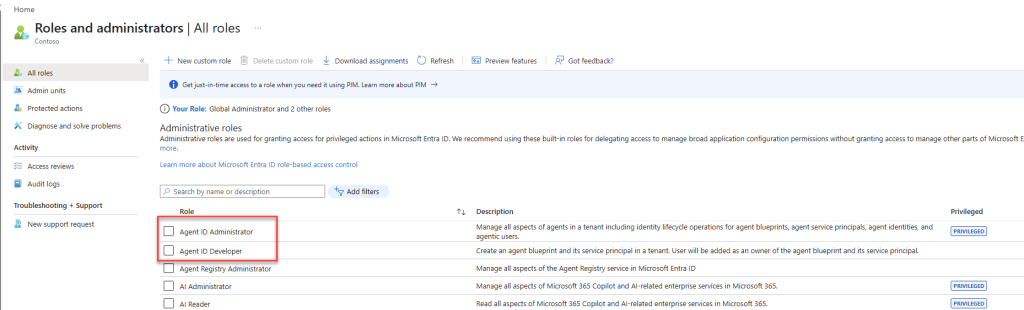
This is the easiest method to create agent identities as it’s a UI-driven experience. Developers/admins with Agent ID Developer or Agent ID Administrator role can use the portal wizard directly to create agent identities. Agent Id blueprint also can be created using the portal.
Method 02 – Microsoft Graph API
In this method we can programmatically create an agent identity by making HTTP POST requests to specific Graph API endpoints. Each step (blueprint, service principal, agent identity) is created via an API call, not manually.
Method 03 – CLI, PowerShell, Infrastructure as Code
Using PowerShell modules, Azure CLI commands, and Bicep templates, we can also programmatically create agent identities and blueprints in a repeatable, automated way.
Method 04 – Microsoft Product Integrations (Fully Managed)
These products integrate directly with the Entra Agent ID platform and handle blueprint + identity creation automatically:
- Microsoft Copilot Studio
- Azure AI Foundry
- Microsoft Security Copilot
- Microsoft Teams Developer Portal
- Microsoft Agent 365
Method 05 – Microsoft Entra ID Consent Experience (Third-party Agents)
When user signs into a non-Microsoft / third-party agent for the first time, the standard Entra consent page appears. Approving consent allow user to add agent to their tenant which then creates an agent identity blueprint principal.
Method 06 – Agent Identity Blueprint Principals
Once a blueprint principal exists in your tenant (from any channel above), the principal itself holds AgentIdentity.CreateAsManager application permission and can create, update, and delete its own agent identities autonomously — up to a maximum of 250 agent identities per principal. This is how scale-out agent deployments work at runtime.
Before we create agent identity blueprints and agent identities, let’s first review some best practices. However, to make informed design decisions, it is important to begin by understanding the key characteristics of an agent identity blueprint.
Agent identity blueprint Characteristics
- Credentials Live on the Blueprint – Credentials used to authenticate any agent identity are configured on the blueprint — not on individual agent instances. All identities share the blueprint’s credentials.
- Inheritable Permissions – Permissions granted on the blueprint principal are automatically inherited by all agent identities created from it.
- Policy Applied at Blueprint Level – Conditional Access policies, lifecycle rules, and governance controls applied to the blueprint take effect for all its agent identities. Disabling a blueprint blocks all instances instantly.
- Sponsor Required at Creation – Every blueprint must have a named sponsor — the person or group accountable for the agent’s purpose. Sponsors can be users, dynamic membership groups, or unified groups.
- Dedicated Audit Entries -Agent identities produce explicit entries in Entra sign-in and audit logs. This giving traceability that plain service principals can’t match.
- Instant Kill-Switch – Disabling an agent identity blueprint instantly prevents all its agent identities from authenticating — a rapid kill-switch when an entire agent class needs to be revoked.
Four Decisions Before You Touch a Blueprint
Most identity architecture mistakes aren’t technical — they’re planning mistakes that get baked in on day one and become expensive to unwind. Answer these four questions in sequence. Each answer narrows the scope of the next.
- What kind of identity does your agent actually need?
The answer for almost every AI agent is agent identity — a dedicated object in Entra with sponsorship, audit entries, and blueprint-managed credentials built in. The only reason to layer in an agent’s user account on top is when a specific system flatly requires a user object, like reading a shared mailbox or posting in a Teams channel. Even then, the user account pairs with an agent identity — it doesn’t replace it.
A plain service principal or a repurposed human user account are both wrong answers here. Service principals have none of the AI-specific governance hooks. Human accounts trigger MFA challenges and identity protection signals tuned for people, not autonomous processes — and your agent will start showing up in the company directory alongside real employees.
- Does your agent run on its own, or does it act for someone?
This determines the token shape your agent uses, which drives permission type, consent model, and risk scope. There are two modes:
- Autonomous – No user present — scheduled, event-driven, or background
- Interactive – A user is actively signed in and the agent works on their behalf
- How many blueprints do you need?
The right question here isn’t “how many agents do I have?” It’s “how many independent blast radiuses do I have?” A blueprint’s credential is the shared key for every identity it produces. If one set of credentials should never be able to reach what another set can reach, those are two blueprints. If a breach of one credential would already expose everything the other agents can touch anyway, that’s one blueprint.
However, following are NOT reasons to add another blueprint,
- You want to disable one specific agent (target it with a CA policy instead)
- You want separate audit streams (every agent identity already logs independently)
- You’re running multiple replicas of the same agent code (that’s scaling, not a new identity)
- You want separate memory stores (memory partitioning is an application concern, not an identity concern).
- How many agent identities per blueprint?
Start with one identity per logical agent and only deviate when there’s a concrete reason. The value of granular identities is attribution — when something goes wrong, you want the logs to tell you exactly which agent did it, not just “something in this blueprint.” Separate identities also mean you can retire, rotate, or investigate one agent without touching the others sharing the same blueprint.
- Multiple identities make sense when agents have distinct roles (e.g., one for data lookup, one for write-back), when each instance needs an independent lifecycle, or when audit attribution matters for compliance.
- Multiple identities are unnecessary when you’re running five replicas of the same agent code for scale. Those replicas are the same logical agent — give them one identity and let the runtime handle the parallelism.
Blueprint Design Best Practices
These are the recommended patterns for secure, scalable, and maintainable agent identity deployments.
- Design the Blueprint Before You Build the Agent
The blueprint is the security contract. If you write agent code first and wire up an identity later, you end up retrofitting permissions and chasing gaps. Get the blueprint right up front and the deployment becomes a fill-in-the-blanks exercise.
- One Identity Per Agent — No Exceptions
Sharing an identity across multiple agents is a false economy. If one agent behaves badly, you can’t surgically revoke it without taking everything else down with it. Separate identities let you kill, rotate, or investigate one agent without touching the rest.
- Credentials live on the blueprint — per-agent identity is cheap to add
- Each instance gets its own audit trail in Entra logs
- Shutdown is targeted, not a blast radius
- Accountability Starts at Day Zero
Every blueprint needs two named humans attached to it at the moment it’s created: a sponsor who owns the “why” of the agent, and an owner who handles the operational “how.” Leaving either blank isn’t just a governance gap — the API will reject the request.
- Sponsor = answers “what is this agent for and should it exist?”
- Owner = answers “is it configured correctly and still healthy?”
- Review both assignments whenever team structure changes
- Make Blueprints Self-Documenting
Six months from now, someone will look at your blueprint in the Entra admin center and have no idea what it does or who owns it. Prevent that now. A rich description, consistent name prefix, and accurate tags cost nothing to write and save hours of archaeology later.
- Naming convention: Agent-[Team]-[Function] (e.g., Agent-Finance-BudgetAnalyzer)
- Description should answer: purpose, owning team, and production date
- Tags make blueprints filterable in logs and the admin center
- Push Policy to the Blueprint, Not the Instance
The power of the blueprint model is that you configure security controls once and they propagate to every agent identity automatically. If you’re manually tweaking Conditional Access or permission scopes on individual instances, you’ve already lost consistency. Set it at the blueprint and let the platform handle inheritance.
- Disabling the blueprint cuts off the entire agent fleet instantly — your kill-switch
- A single policy update reaches every running instance immediately
- No configuration drift between agent instances
- Never Register AI Agents Outside the Agent ID Framework
Registering an AI agent as a plain app registration or generic service principal might feel quicker, but you lose everything that makes Agent ID worth using: sponsor accountability, dedicated audit entries, platform-level privilege restrictions, and lifecycle controls tied to the blueprint. Shadow AI starts with shortcuts like this.
Creating Microsoft Entra Agent ID
As mentioned earlier, there are multiple ways to create a Microsoft Entra Agent ID. While using the Entra portal is the simplest approach, it may not be suitable for all scenarios—particularly when working with third-party (3P) agents.
Creating an Entra Agent ID involves several steps, including defining the agent identity blueprint, configuring credentials, setting up identifier URIs and scopes, creating service principals, and provisioning the agent identity. When using command-line tools, each step requires its own syntax and commands, which can make the process more complex.
As a result, the overall experience can feel overwhelming, especially as it often requires navigating multiple pieces of documentation to complete the full setup successfully.
Is there better way? yes Microsoft come up with AI guided setup for agent id where you can use AI coding agent – GitHub Copilot to execute the steps correctly can create Entra agent ID. In this part of the blog post, I am going to demonstrate how to do that.
Prerequisites
Before we go ahead with this method, make sure you have following in place.
- Visual Studio Code with GitHub Copilot (GitHub Copilot required subscription)
- GitHub Copilot for Azure extension
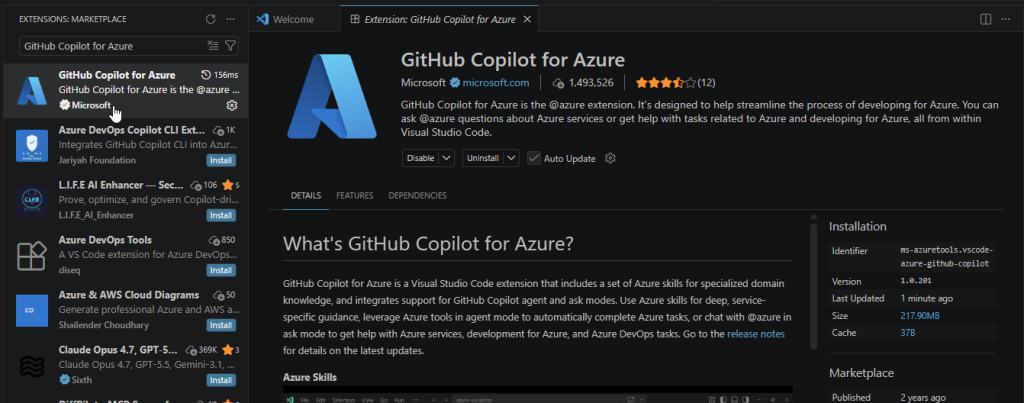
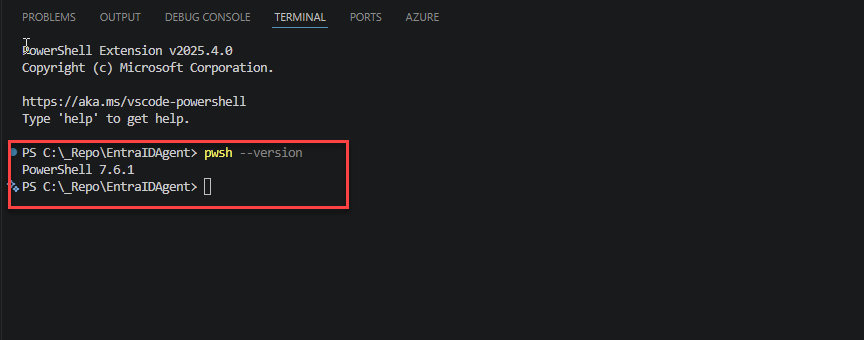
- PowerShell 7
- Microsoft Graph PowerShell SDK (https://learn.microsoft.com/en-us/powershell/microsoftgraph/installation?view=graph-powershell-1.0)

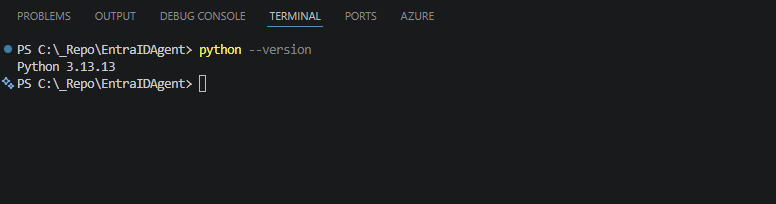
- Python 3.8 or later
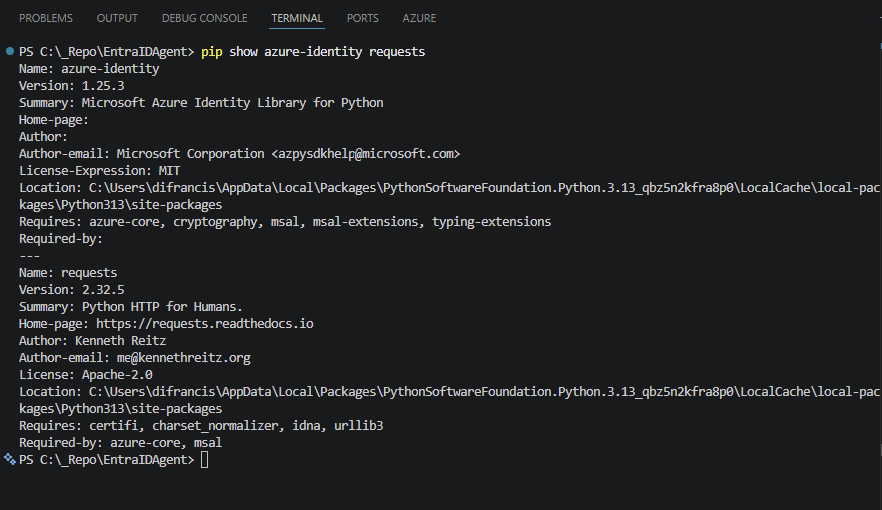
- Python azure-identity and request library
- Agent ID Developer or Agent ID Administrator role
- Agent ID Skill from https://github.com/microsoft/GitHub-Copilot-for-Azure/blob/main/plugin/skills/entra-agent-id/SKILL.md
You can download it to your working directory in VSCode or directly refer to it from URL.
AI-Guided Setup — Step-by-Step
- Open GitHub Copilot Chat in Agent Mode

- Type and enter “Follow the steps in https://github.com/microsoft/GitHub-Copilot-for-Azure/blob/main/plugin/skills/entra-agent-id/SKILL.md”

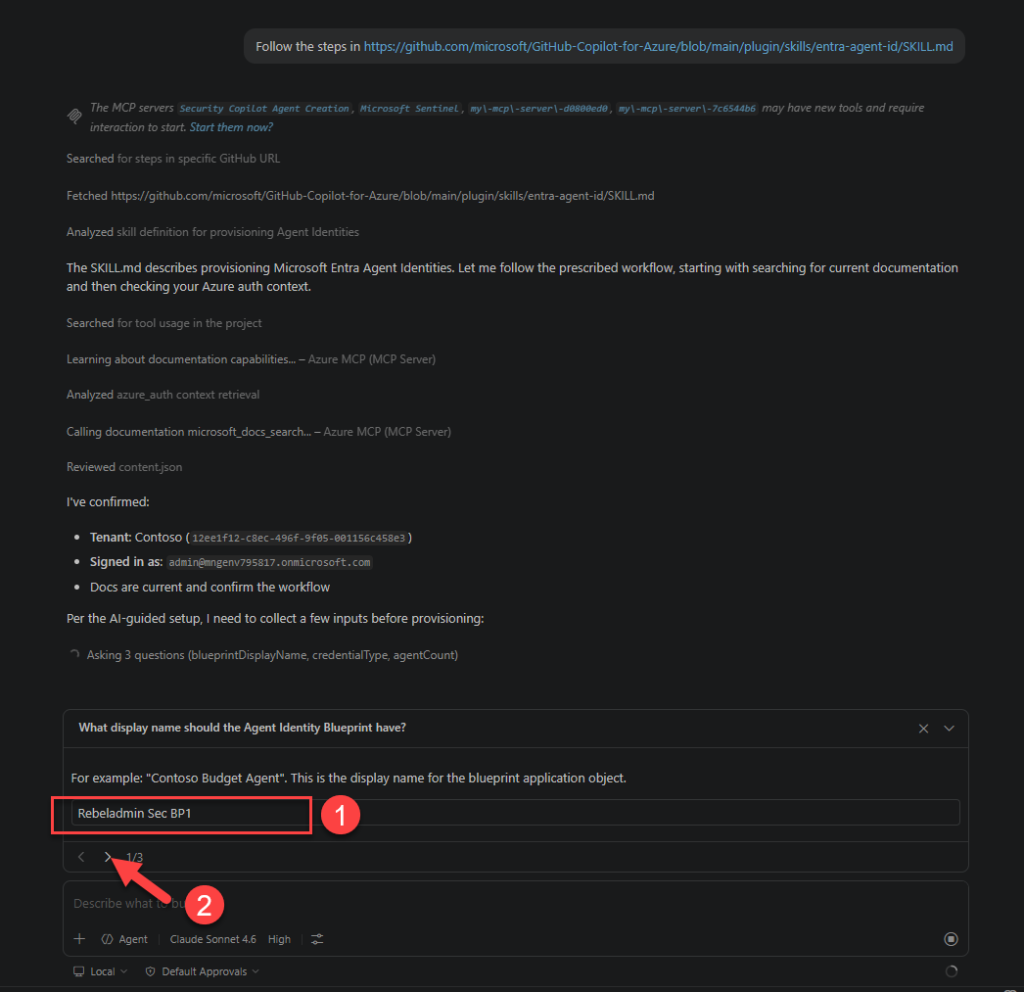
- Then it follow the steps from SKILL.md. After validation of Azure MCP connection and Graph access, it is prompt for the Agent Identity Blueprint name. Provide appropriate name and click Next (>)
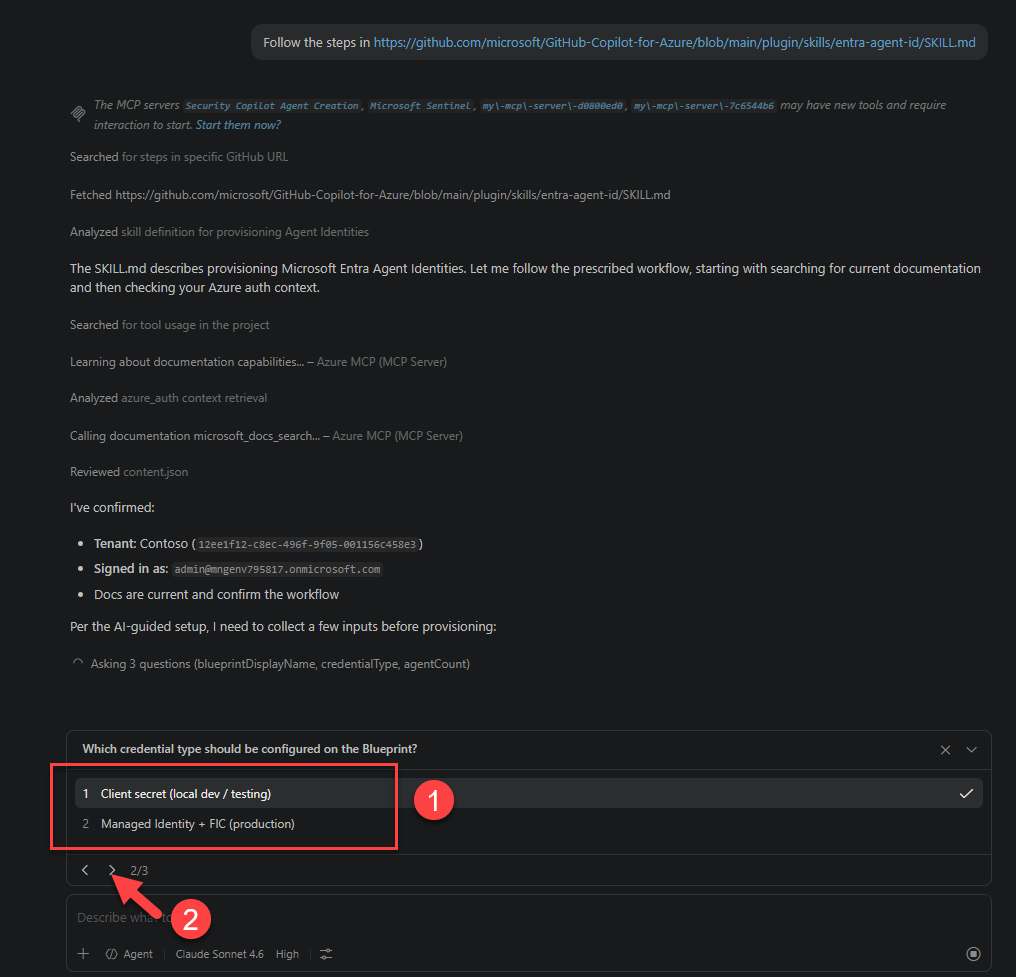
- Next it asks for the credential type for the Blueprint. Use Managed identity for any production deployment. Select the relevant type click Next (>)
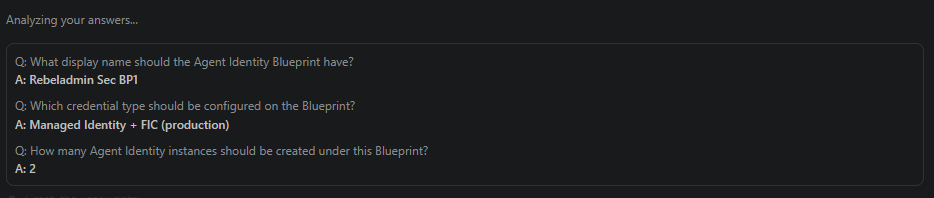
- In next question it asks how many agent identities will be created under this agent blueprint. Define the number you prefer and click Next.
- Once validation done it will ask for the Graph consent. Go ahead and login to your tenant with an account Privileged Role Administrator and grant consent.
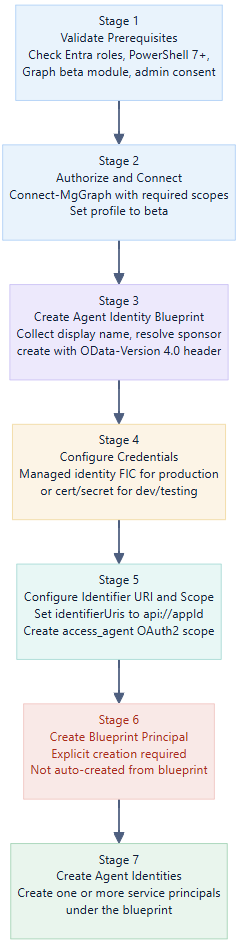
- It follows 7 steps as mentioned in below in the background.
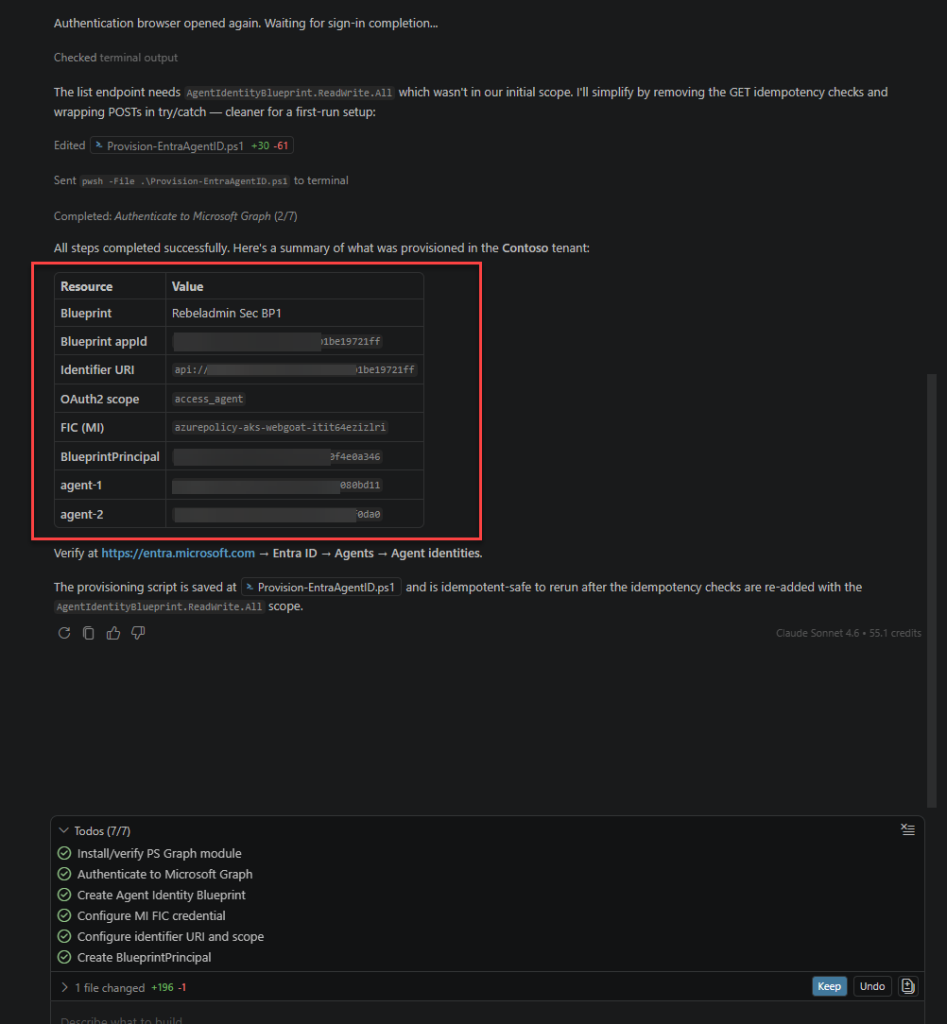
- At the end of the process, it confirms the created blueprint and agent details.
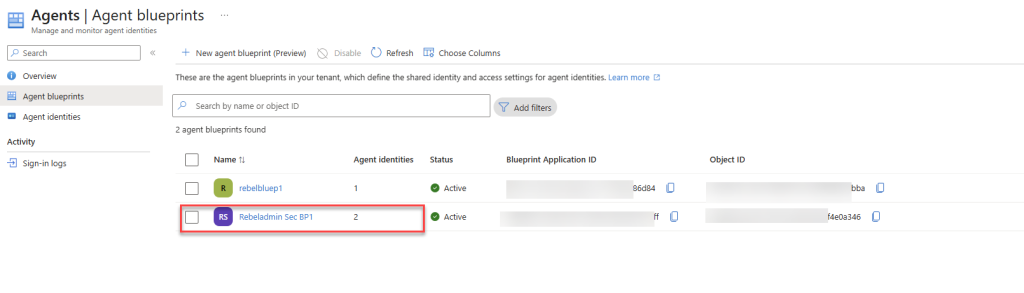
- As expected, when I got to Entra > Agents > Agents Blueprint, I can see the newly created agent blueprint
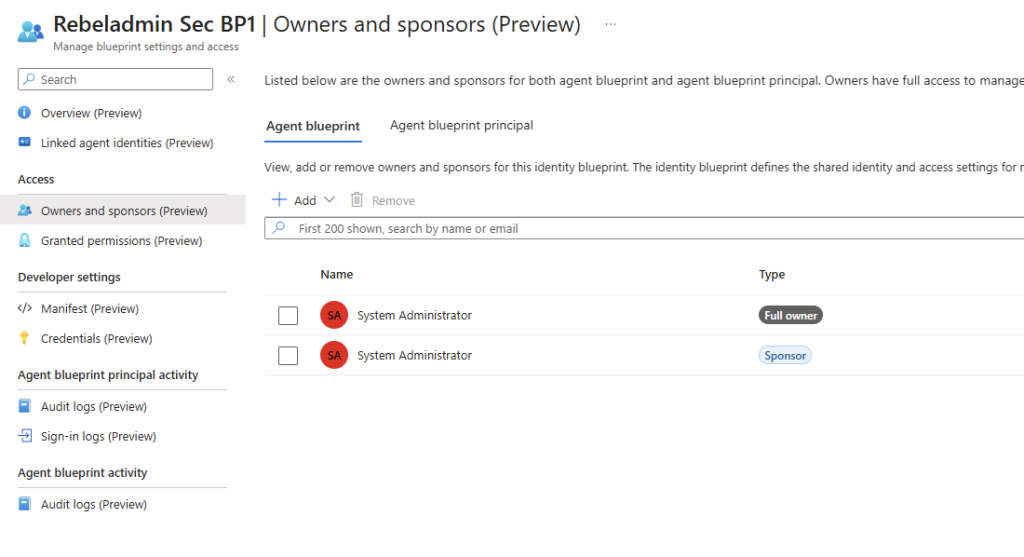
- Please not by default the blueprint creator added as owner and the sponsor.
- As I requested, it also automatically created two agents and attached those to the newly created blueprint.
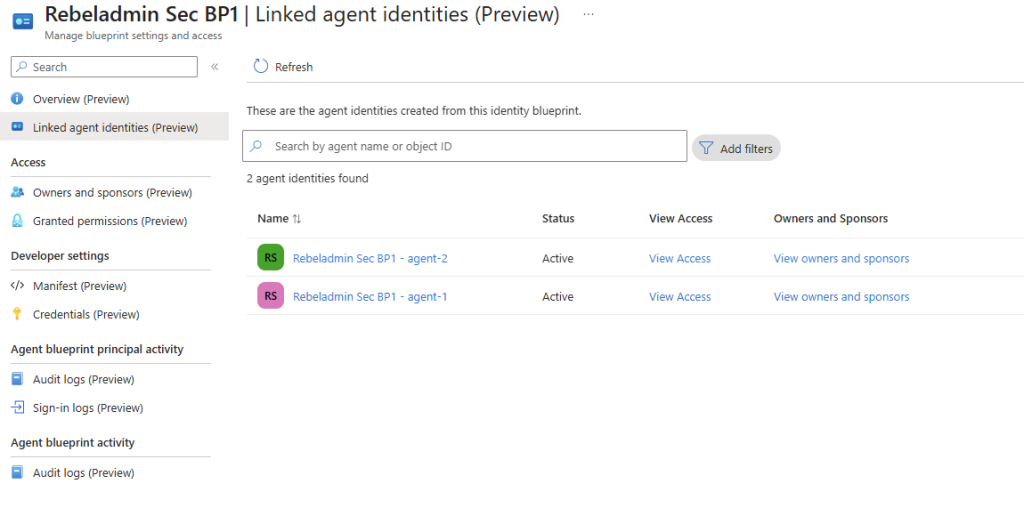
As demonstrated by the evidence, the AI-guided method worked as expected. This brings us to the end of this blog post. By now, you should have a clearer understanding of Agent ID blueprints, Agent ID identity creation best practices, and how to create a Microsoft Entra Agent ID blueprint and identity using the AI-guided approach with VS Code and GitHub Copilot.
In the next post, we will explore Agent ID access control best practices.